
Generate the code at error-correction level H, keep the logo to roughly 10–15% of the code’s area or less, centre it, give it a light margin, and never cover the three corner squares. Then scan test prints on several phones.
A logo works because of error correction. The code carries extra recovery data, so a scanner can rebuild the modules that the logo hides. Done within limits, it is reliable. Done carelessly, it is the quickest way to break a code that scanned perfectly before.
Step 1: raise the error correction to H
Level H can recover up to about 30% of codewords, the most available. A logo uses part of that budget, and so do blur, glare and tilt, so start from H. The cost is a denser code; see error correction levels explained.
Step 2: keep the logo small
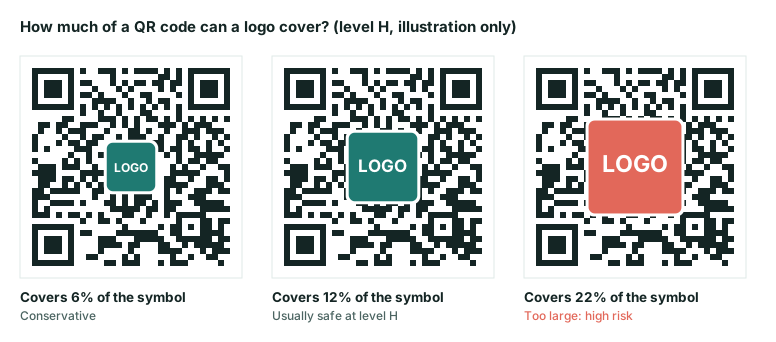
A safe working range is roughly 6–15% of the symbol’s area, which means a logo whose width is about a quarter to two-fifths of the code’s width. At 22% (right), you consume most of the correction budget before real-world blur is considered. The 30% figure is a theoretical ceiling for the data blocks, not a design target.
| Logo width as share of code width | Approx. area covered | Risk |
|---|---|---|
| 25% | 6% | Low |
| 35% | 12% | Moderate: test carefully |
| 47% | 22% | High: likely to fail on some devices |
Step 3: protect the structural parts
- Never cover the three finder patterns (the large corner squares). Without them the code cannot be located.
- Avoid the alignment pattern in larger codes, and the thin timing lines.
- Centre the logo. The middle of the data area is the safest place to hide modules.
- Add a clear margin (a white or background-coloured border) around the logo so partial modules do not create confusing fragments.
Step 4: make the code a bit larger
Level H and a logo both reduce tolerance for small print. Increase the printed width by 20–30% compared with the size you would use for a plain code. The size calculator shows the minimum for your content and level.
Step 5: test like you mean it
- Scan the final artwork on an iPhone and an Android phone.
- Print one copy at actual size and scan it from the real distance.
- Scan in dim light and at a slight angle.
- If any test is slow or unreliable, shrink the logo before you change anything else.
An easier alternative
You do not need to put the logo inside the code. Placing your logo or brand name directly above or beside the code, with a short call to action, delivers the same brand recognition with zero scan risk. This is often the best choice on small items such as business cards, where every module counts. This site’s generator deliberately does not overlay logos for the same reason; export the SVG and add the logo in your design tool if you choose to.
Frequently asked questions
Can I put a logo in a code that uses level M or L?
It is risky. Lower levels leave much less recovery budget, so even a small logo can push the code past its limit. Use level H, keep the logo small, and test.
Does a logo make a QR code scan better?
No. It never improves scanning reliability. It can improve the number of people who choose to scan, because a branded code looks more trustworthy, but the technical effect is neutral at best.
How do I add the logo myself?
Download the SVG from the generator at level H, place it in a design tool, centre your logo on a white or background-coloured shape, and export. Then scan the result on several phones.
Try it: QR Code Generator — Create QR codes for links, text, Wi-Fi, contacts, email, phone and SMS. Download PNG or SVG.
Keep reading
Our guides give general information based on QR specifications, calculations and worked examples. Results depend on your printer, materials and devices, so always test a real print. See our editorial policy.