A Wi-Fi QR code stores a string like WIFI:T:WPA;S:CafeGuest;P:mocha2026;;. Modern iPhone and Android cameras read it and offer to join the network. The password is stored in plain text inside the code, so use it for a guest network, not your main one.
Typing a long Wi-Fi password into a phone is slow and error-prone, especially with lookalike characters. A QR code replaces that with one scan. It is useful in cafes, rentals, offices and at home. Understanding the format helps you avoid the usual failures.
The payload format
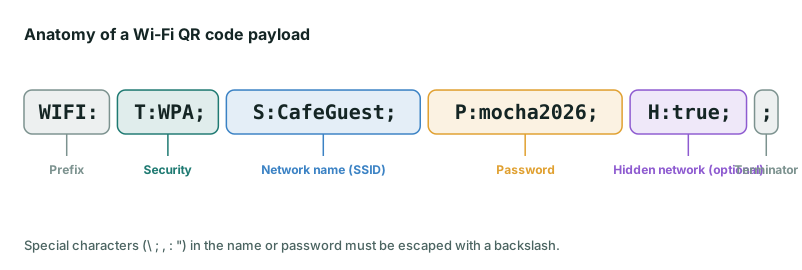
| Field | Meaning | Values |
|---|---|---|
WIFI: | Prefix that tells the phone this is a network | Fixed |
T: | Security type | WPA (the usual choice for WPA and WPA2 networks), WEP, or nopass |
S: | Network name (SSID) | Your network name, case-sensitive |
P: | Password | Omit for open networks |
H: | Hidden network | true if the SSID is not broadcast |
This format began as a convention in a popular Android scanner app and became widely supported by the camera apps in current iOS and Android. It is not part of the QR standard itself, which is why the QR code is simply “text” to any generic reader.
Escaping special characters
The characters \ ; , : and " have special meaning in the format. If your network name or password contains one, put a backslash before it. A password p;ss:word becomes P:p\;ss\:word;. Our generator applies the escaping for you, which is the most common thing people get wrong when they build the string by hand. Each generated payload is checked in automated tests by decoding the finished code back to the original string, including names and passwords that contain every special character.
Security: what you are actually exposing
The password is stored in readable text. Anyone who can see the code can read it, and that includes anyone who photographs a printed copy. Treat the printed code as a printed password. Practical steps:
- Use a guest network. Most routers support a separate guest SSID that is isolated from your devices and files.
- Change the password periodically and reprint, especially for rentals or after staff changes.
- Do not use the code for your main network if you wish to keep it private.
- Avoid WEP. It is obsolete and easily broken. Use WPA2 or WPA3.
Where to place it
Put the code where guests naturally look: on a table tent, behind the counter, on a welcome card by the door or inside a rental’s entry folder. Add the network name in plain text beneath it so people who cannot scan still know what to select. A code printed 3–4 cm wide is fine at arm’s length; see the size guide.
If it fails
- Check the security type matches the router. Most home and business networks use
WPA; some phones label WPA3-only networks differently, so if yours is WPA3-only, test with your guests’ phones. - Confirm the SSID and password character-for-character, including capitals and spaces.
- If the network is hidden, make sure the hidden option is on.
- Older devices may not offer to join; give them the typed details as a backup.
Frequently asked questions
Can a Wi-Fi QR code connect people without revealing the password?
Not for a normal WPA network. The phone needs the password to join, so it is stored in the code. For tighter control use a guest network with a password you can change, or a captive portal where guests register.
Will it work on laptops?
Usually not directly. Phones read the code natively; most laptops do not offer to join from a QR code. Always print the network name and password in text as a backup.
What do I do when I change the Wi-Fi password?
Generate a new code and replace the printed one. A frame with a replaceable insert makes this a thirty-second job.
Try it: QR Code Generator — Create QR codes for links, text, Wi-Fi, contacts, email, phone and SMS. Download PNG or SVG.
Keep reading
Our guides give general information based on QR specifications, calculations and worked examples. Results depend on your printer, materials and devices, so always test a real print. See our editorial policy.