Check a Contact QR by Importing a Synthetic Contact
Verify field mapping, line breaks, and recipient behavior before publishing real contact details in a QR asset.
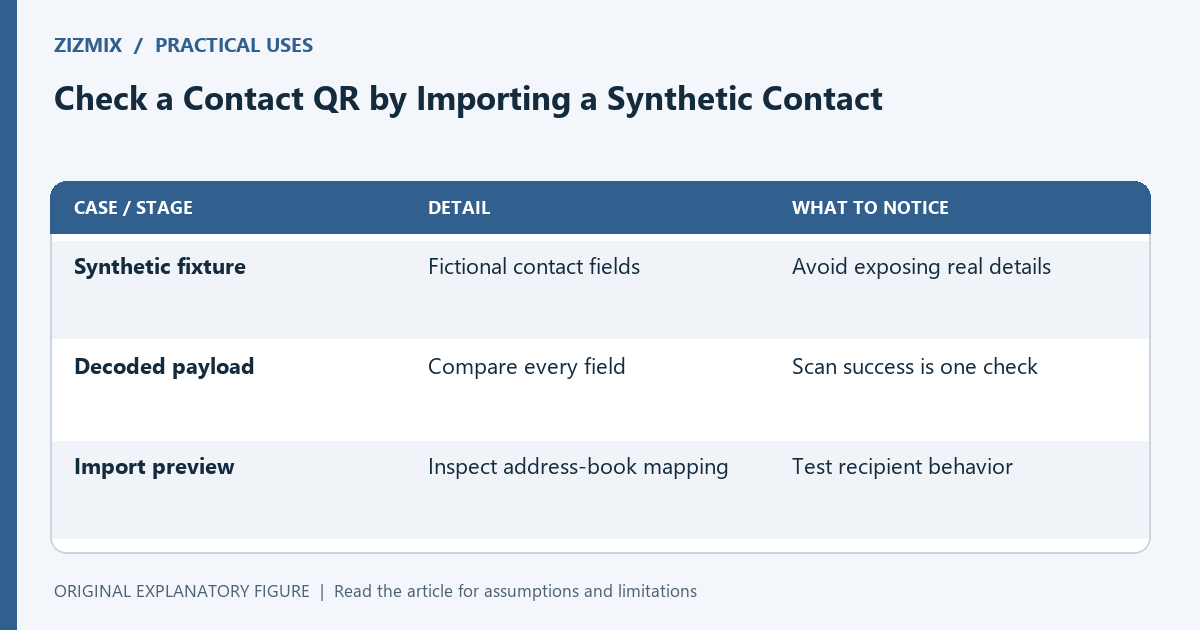
A contact QR can decode successfully while its fields import incorrectly into an address book. The scan and the import are separate checks. This guide uses synthetic contact details so you can inspect mapping without distributing someone’s personal information. The site offers a contact mode, but recipient applications can handle contact records differently, so test the actual workflow you intend to support.
Create an unmistakable test contact
Use a clearly fictional name and an example-domain address. Include a company, phone field, and note only if your real use needs them. Keep a written record of the intended field values.
Do not begin by sharing a real person’s details in screenshots or public print proofs. A synthetic fixture can reveal field placement and formatting problems without that exposure. Remove test contacts from devices when the exercise is finished.
Inspect the generated payload
Decode the exported code and compare its content with the intended fields. Look for missing lines, unexpected separators, and values placed in the wrong field. A visible QR pattern does not show whether the structured content is correct.
Keep the payload version and export together. If you edit a field after downloading, regenerate the code. A static contact asset contains the earlier payload; changing the form does not change files already distributed.
Test the import result
Scan with the recipient workflow and inspect the proposed contact before saving it. Check given and family names, organization, email, phone, and any other included fields. Do not approve solely because the contact title looks right.
Try another available device or address-book application when that matters to your audience. Record observed behavior rather than claiming universal compatibility. A recipient can also choose not to import, so the printed context should explain what the code contains.
Review what belongs in a public asset
A printed contact code can be read by anyone who obtains the material. Include only details intended for that distribution. Removing the code from your current design does not recall copies already printed or photographed.
If contact information changes frequently, consider whether a controlled contact page better fits the maintenance need. That is a destination-design choice, not an automatic requirement. Check the actual use before choosing between an embedded contact and a page link.
Repeat the checks with approved details
Once the synthetic mapping works, insert the information approved for publication and regenerate the final asset. Decode it again, inspect an import preview, and perform the relevant print test.
Use the QR generator’s contact mode and the asset-handoff guide for delivery. Keep the final field record with the approved file. The useful acceptance statement distinguishes correct decoding, correct field mapping, and the tested recipient applications instead of merging them into “the QR works.”
| Case or stage | Detail | What to notice |
|---|---|---|
| Synthetic fixture | Fictional contact fields | Avoid exposing real details |
| Decoded payload | Compare every field | Scan success is one check |
| Import preview | Inspect address-book mapping | Test recipient behavior |